ShareMe System Requirements
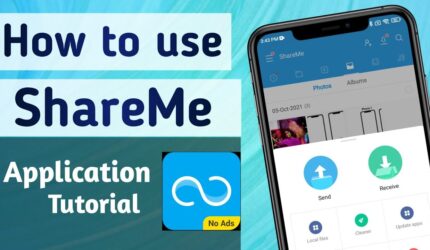
How to Use ShareMe App - Step by Step
Sharing files with ShareMe app takes less than 30 seconds. Follow these simple steps.
Step 1 : Download & Install Download the ShareMe APK on both Android devices. Install the app and open it on both phones.
Step 2 : Select Send or Receive On the sending phone, tap “Send” and select the files you want to share — photos, videos, music, apps, or documents. On the receiving phone, tap “Receive”.
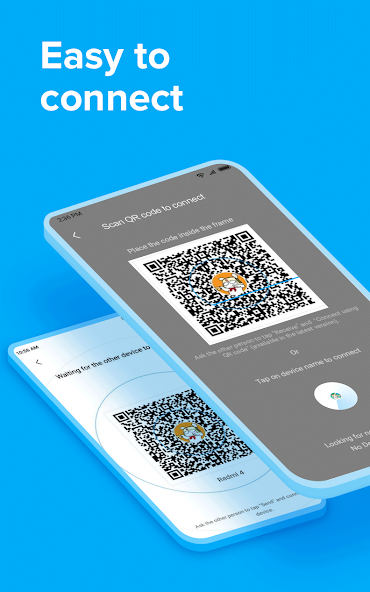
Step 3 : Scan QR Code or Search Nearby The receiving phone will display a QR code. Scan it with the sending phone, or wait for the app to automatically detect nearby devices.
Step 4 : Transfer Starts Instantly Once connected, your files will start transferring at up to 20 MB/s. You will see a live progress bar. Large files like movies transfer in seconds.
Step 5 : Find Your Files After transfer is complete, all received files are saved in the MIUI/ShareMe folder on your phone. You can also view them directly inside the app under “Received Files.”
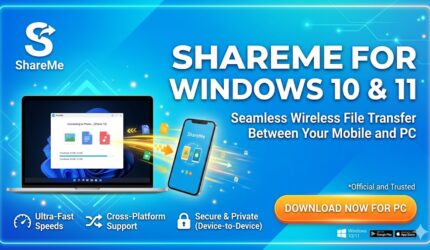
How to Use ShareMe on PC and Laptop
What You Need Before Starting
- An Android phone with ShareMe installed
- A Windows PC or Laptop
- Both devices connected to the same WiFi network
- No USB cable required
- No extra software needed on your PC
Step 1: Connect Both Devices to the Same WiFi Network
Make sure your Android phone and your Windows PC are both connected to the same WiFi network. This is the most important step. If both devices are not on the same WiFi, the connection will not work.
Step 2: Open ShareMe on Your Phone
Open the ShareMe app on your Android phone. Tap the menu icon which is the three horizontal lines usually located at the top left corner of the screen. A menu will appear with several options.
Step 3: Select Connect to Computer
From the menu, tap on the option that says Connect to Computer. This will open a new screen where ShareMe will prepare to create a connection with your PC.
Step 4: Start the Connection
Tap the Start button on your phone screen. ShareMe will ask you to choose your preferred storage location. You can select either your phone’s Internal Storage or your SD Card depending on where your files are stored.
Once you select the storage, ShareMe will generate a unique FTP address. This address will look something like this: ftp://192.168.x.x:xxxx. This address will appear clearly on your phone screen.
Step 5: Enter the FTP Address on Your PC
Go to your Windows PC and open File Explorer. You can open File Explorer by pressing the Windows Key + E on your keyboard or by clicking the folder icon in your taskbar.
Now look at the address bar at the top of the File Explorer window. Click on it and type the FTP address that is shown on your phone screen exactly as it appears. Press Enter.
Windows File Explorer will now connect to your phone through ShareMe and display all your phone files directly on your PC screen.
Step 6: Access and Transfer Your Files
You can now see all the files and folders stored on your phone directly inside Windows File Explorer. You can browse through your photos, videos, music, documents, and other files very easily.
To copy files from your phone to your PC, simply select the files you want and drag and drop them into any folder on your PC. To send files from your PC to your phone, drag and drop them from your PC into the File Explorer window showing your phone storage.
All transfers are fast, free, and happen over your local WiFi network. No internet connection is required and there is no file size limit.
ShareMe App – Most Popular File Sharing App in India
ShareMe app is one of the most widely used file sharing applications in India. With over 500 million users globally and millions of active users across India, ShareMe has become the go-to choice for fast, free, and offline file transfer.
Whether you are using a budget Redmi phone, a mid-range Samsung Galaxy, Realme, OPPO, or any other Android smartphone, ShareMe app works perfectly on every device. The app is available in multiple languages and does not require a stable internet connection — making it ideal for users across India, including tier-2 and tier-3 cities where network coverage can be limited.
Key reasons Indians prefer ShareMe app:
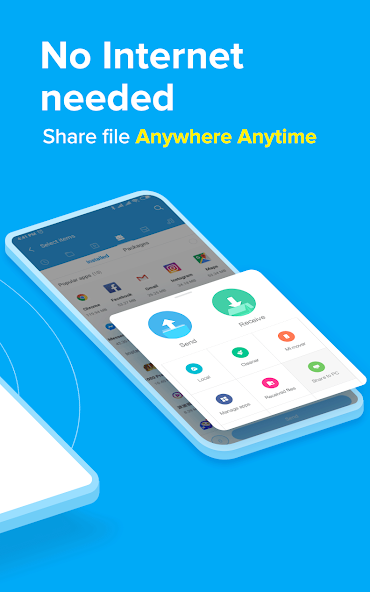
- Works without internet — no data charges
- Compatible with every Android phone brand available in India
- Completely free — no hidden charges or subscriptions
- Fast speed — ideal for sharing Bollywood movies, songs, large video files
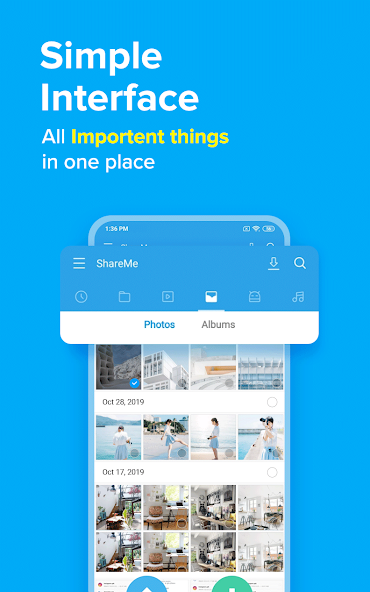
- Simple interface — easy to use for everyone, even first-time smartphone users
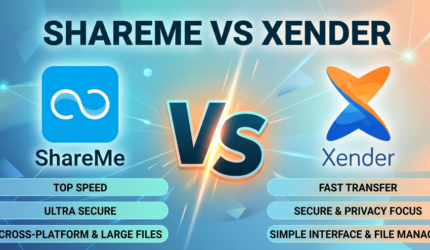
ShareMe App vs Other File Sharing Apps – Why ShareMe Wins


 Download for Android
 Download for PC
 Download for iOS
 Yes
Yes No
No